Codex
Connect Praxis to Codex: a terminal coding agent speaking the Responses protocol.
Connect Praxis to Codex and drive OpenAI's terminal coding agent with your own key—editing code, running commands, answering questions. The key lives in an environment variable, never in the config file.
Every step lists its expected result: follow along yourself, or hand this page to an AI assistant that can operate your computer and let it do the install, setup, and verification for you.
What you'll accomplish
- Call Praxis models with the
codexcommand in your terminal - Done when:
codex exec "…"returns a model reply - Time needed: 3–5 minutes (excluding the Node.js install)
- Protocol: OpenAI Responses (Codex's native protocol)
Prerequisites
Confirm each item before you start:
-
A Praxis API key (starting with
sk-praxis-). If you don't have one, create it at Console → API Keys: click "Create Key"—the name is required, the validity defaults to 90 days (or pick permanent)—the dialog then shows the full key once—copy it right away. You can also re-copy the full key any time from the copy icon that appears when hovering its row in the key list. If the dialog sticks on "Creating…", refresh the list—the key exists and row copy still retrieves it in full. New accounts ship with $1 of free credit. See Quickstart for the full flow. -
Node.js 18 or newer. Check with
node --version; install the LTS from nodejs.org if needed. -
Install the Codex CLI:
npm install -g @openai/codexExpected:
codex --versionprintscodex-cli <version>(this page follows 0.162.1).
Configure
Step 1: write the config file
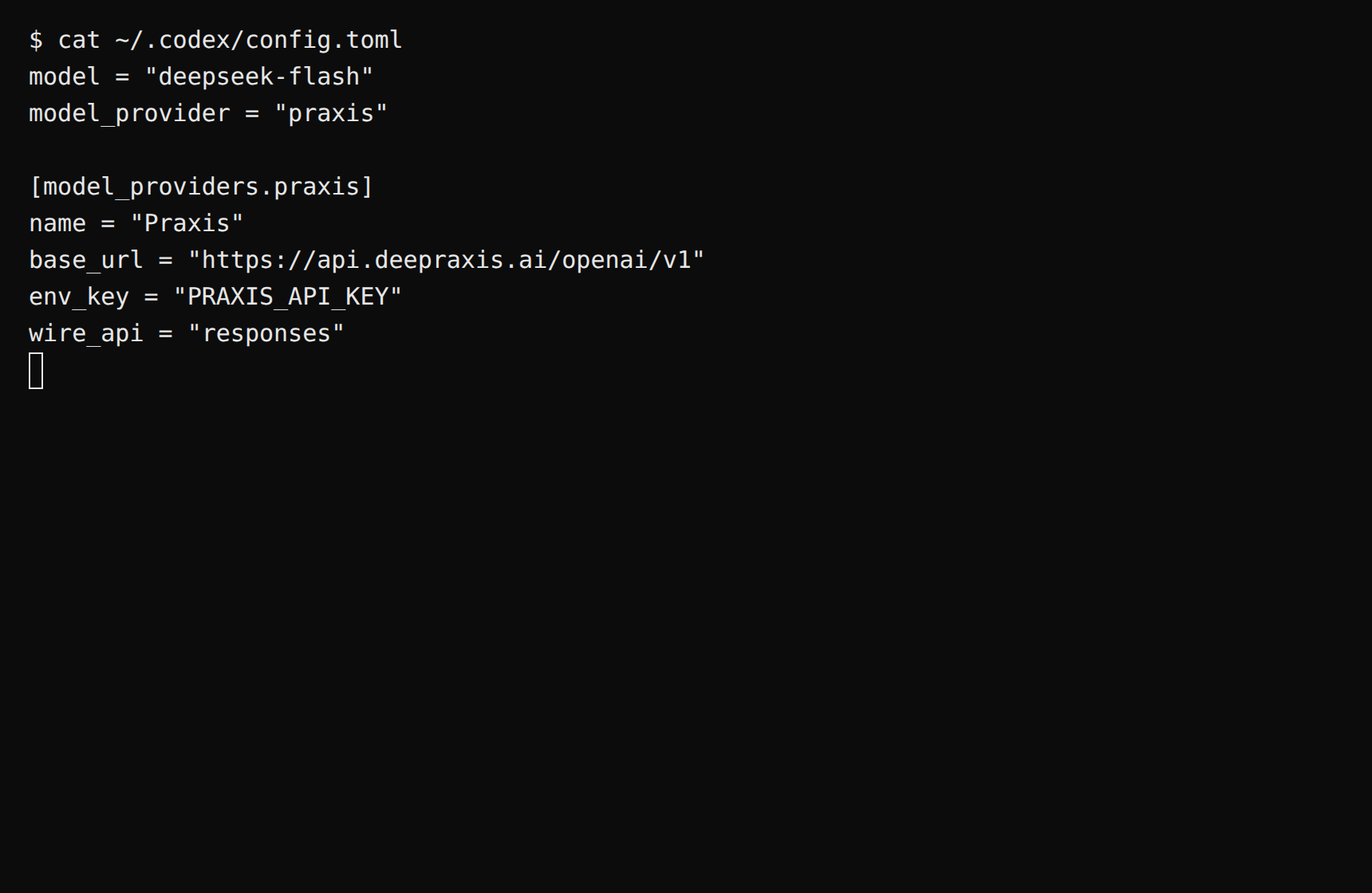
Create ~/.codex/config.toml (on Windows, %USERPROFILE%\.codex\config.toml):
model = "deepseek-flash"
model_provider = "praxis"

[model_providers.praxis]
name = "Praxis"
base_url = "https://api.deepraxis.com/openai/v1"
env_key = "PRAXIS_API_KEY"
wire_api = "responses"
Three notes:
- The key does not go into this file—
env_keydeclares that Codex reads it from thePRAXIS_API_KEYenvironment variable, set in the next step. wire_apimust beresponses: Codex speaks the OpenAI Responses protocol, not classic chat completions.modeltakes a catalog model ID;deepseek-flashis the platform's sample model—cheap, fast, good at both Chinese and English.
Expected: the next codex launch picks up the new config (restart any session already running).
Step 2: set the key environment variable
macOS / Linux (WSL included):
export PRAXIS_API_KEY=sk-praxis-your-keyAdd the line to ~/.bashrc or ~/.zshrc to persist it. Windows PowerShell: $env:PRAXIS_API_KEY="your-key" (or set a system environment variable and reopen the terminal).
Expected: echo $PRAXIS_API_KEY prints your key (echo $env:PRAXIS_API_KEY on PowerShell).
Verify
From a code project directory (a git repository), run:
codex exec "Reply with exactly: connected"Expected: the reply contains connected, ending with a tokens-used line—a reply means you're connected. The first run may print "Model metadata for … not found … Defaulting to fallback metadata"; that's the normal fallback notice for custom models and doesn't affect usage.
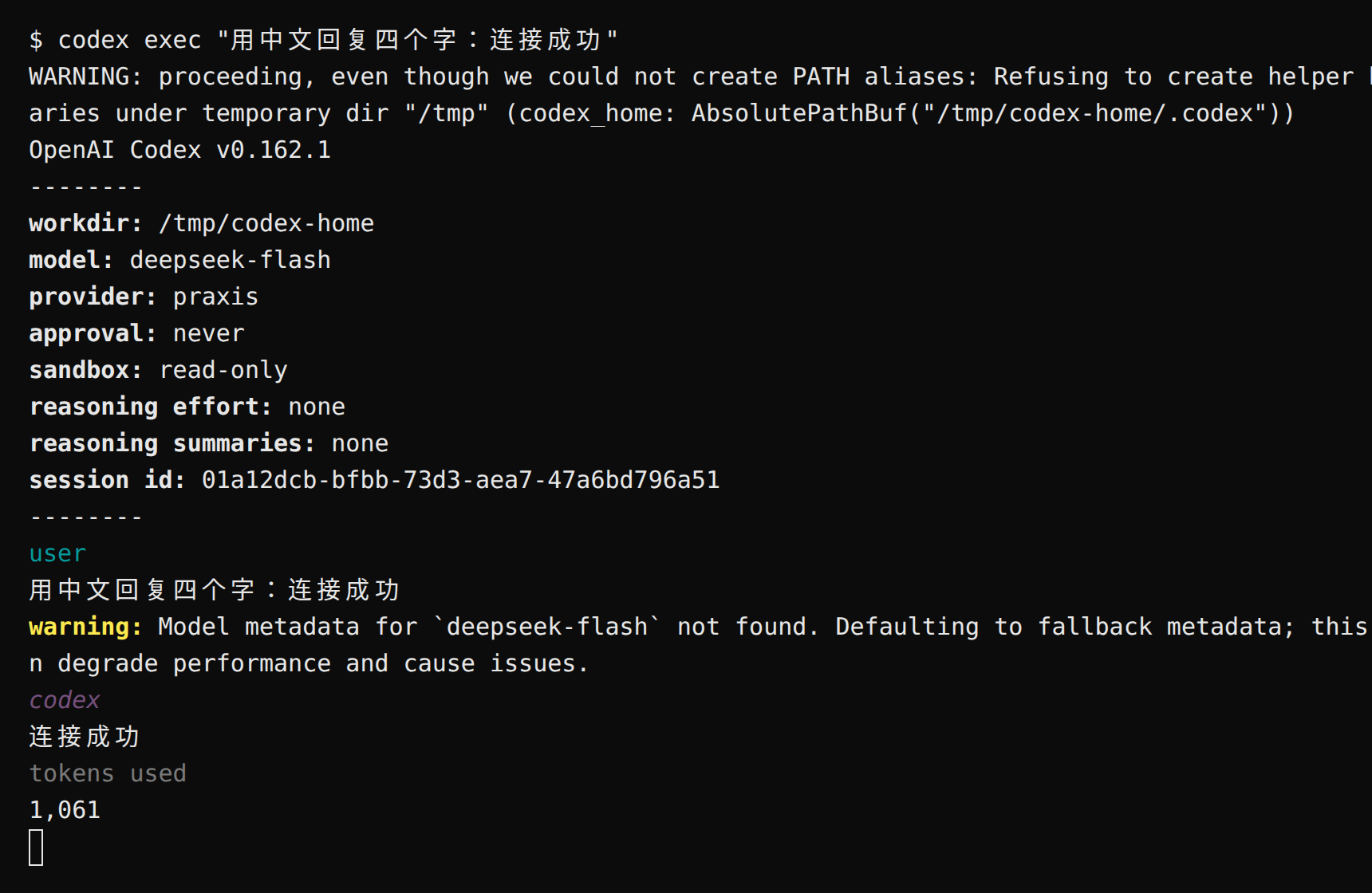
Drop exec and run codex for the full interactive workspace (the version banner and input box mark entry; not verified on this page).
You can also verify from the command line. Set the variable first (copying the curl verbatim without it yields a 401):
export PRAXIS_API_KEY=sk-praxis-your-keycurl https://api.deepraxis.com/openai/v1/responses \
-H "Authorization: Bearer $PRAXIS_API_KEY" \
-H "Content-Type: application/json" \
-d '{"model": "deepseek-flash", "input": "Hello", "max_output_tokens": 256}'Expected: HTTP 200 means you're connected. The block in output with type text is the reply—deepseek-flash is a reasoning model, so a reasoning block may come first; that's normal.
The commands above are written for macOS / Linux / WSL (bash). On Windows PowerShell: a successful
codex execabove already means you're connected—feel free to skip; for the CLI route, run$env:PRAXIS_API_KEY="your-key"first, usecurl.exe(PowerShell'scurlis an alias with different syntax), and join the command into a single line (dropping the trailing\).
Finally, check Console → Usage & Billing: the call you just made is already on the books—every call is billed and traceable.
FAQ
| Symptom | Cause | Fix |
|---|---|---|
Model metadata … not found | Custom models aren't in Codex's built-in metadata table | Normal fallback notice—just use it; chats and tool calls are unaffected |
| Invalid token / 401 | PRAXIS_API_KEY not exported, copied incompletely, or the terminal wasn't reopened after editing shellrc | Check with echo $PRAXIS_API_KEY; copy it again in full; reopen the terminal |
Not inside a trusted directory … | Run outside a git repository | Run from a project directory, or pass --skip-git-repo-check |
unknown configuration field | An older Codex build doesn't recognize newer config keys | Upgrade with npm install -g @openai/codex and retry |
| "Model not found" | Model ID doesn't match the catalog | Copy the exact ID from Console → Models |
Advanced
- How much did that session cost? Console → Usage & Billing—pay per call, no idle fees
- Switch models: set
modelinconfig.tomlor runcodex -m <model-id>. Usedeepseek-flashordeepseek-v4-flash. Codex requires a model that declares Responses support; open the model details in the model catalog and confirm Responses is listed before selecting it. - Use it in a project: interactive
codexreads files, edits code, and runs commands, asking for your confirmation before sensitive actions
Related recipes
- Claude Code (the Anthropic-protocol sibling) · Cline · OpenCode
- Prefer a GUI? See Cherry Studio · Chatbox