OpenCode
Connect Praxis to OpenCode: declare one provider in opencode.json and you're in.
Connect Praxis to OpenCode—the open-source terminal coding agent. Drop an opencode.json into your project declaring the provider, keep the key in an environment variable, and opencode run just works.
Every step lists its expected result: follow along yourself, or hand this page to an AI assistant that can operate your computer and let it do the install, setup, and verification for you.
What you'll accomplish
- Call Praxis models with
opencode runin your terminal - Done when:
opencode run "…"returns a model reply - Time needed: 3–5 minutes (excluding the Node.js install)
- Protocol: OpenAI-compatible (
/openai/v1)
Prerequisites
Confirm each item before you start:
-
A Praxis API key (starting with
sk-praxis-). If you don't have one, create it at Console → API Keys: click "Create Key"—the name is required, validity offers 30/60/90 days or permanent, defaulting to 90 days; the success dialog shows the full key with a "Copy Key" button, and after it closes the list shows only a masked value—re-copy the full key any time from the copy icon on its row. Expected: a "Create API Key" dialog appears, and after submitting, a dialog shows the full key with a "Copy Key" button. New accounts ship with $1 of free credit. See Quickstart for the full flow. -
Node.js 18 or newer (check
node --version). -
Install OpenCode:
npm install -g opencode-aiExpected:
opencode --versionprints a version number (this page follows 1.19.0). If npm reports a platform-package problem, install the suggested platform package as well (Linux x64:npm install -g opencode-linux-x64).
Configure
Step 1: set the key environment variable
export PRAXIS_API_KEY=sk-praxis-your-keyAdd the line to ~/.bashrc or ~/.zshrc to persist it. Windows PowerShell: $env:PRAXIS_API_KEY="your-key".
Expected: echo $PRAXIS_API_KEY prints your key (echo $env:PRAXIS_API_KEY on PowerShell).
Step 2: declare the provider in your project
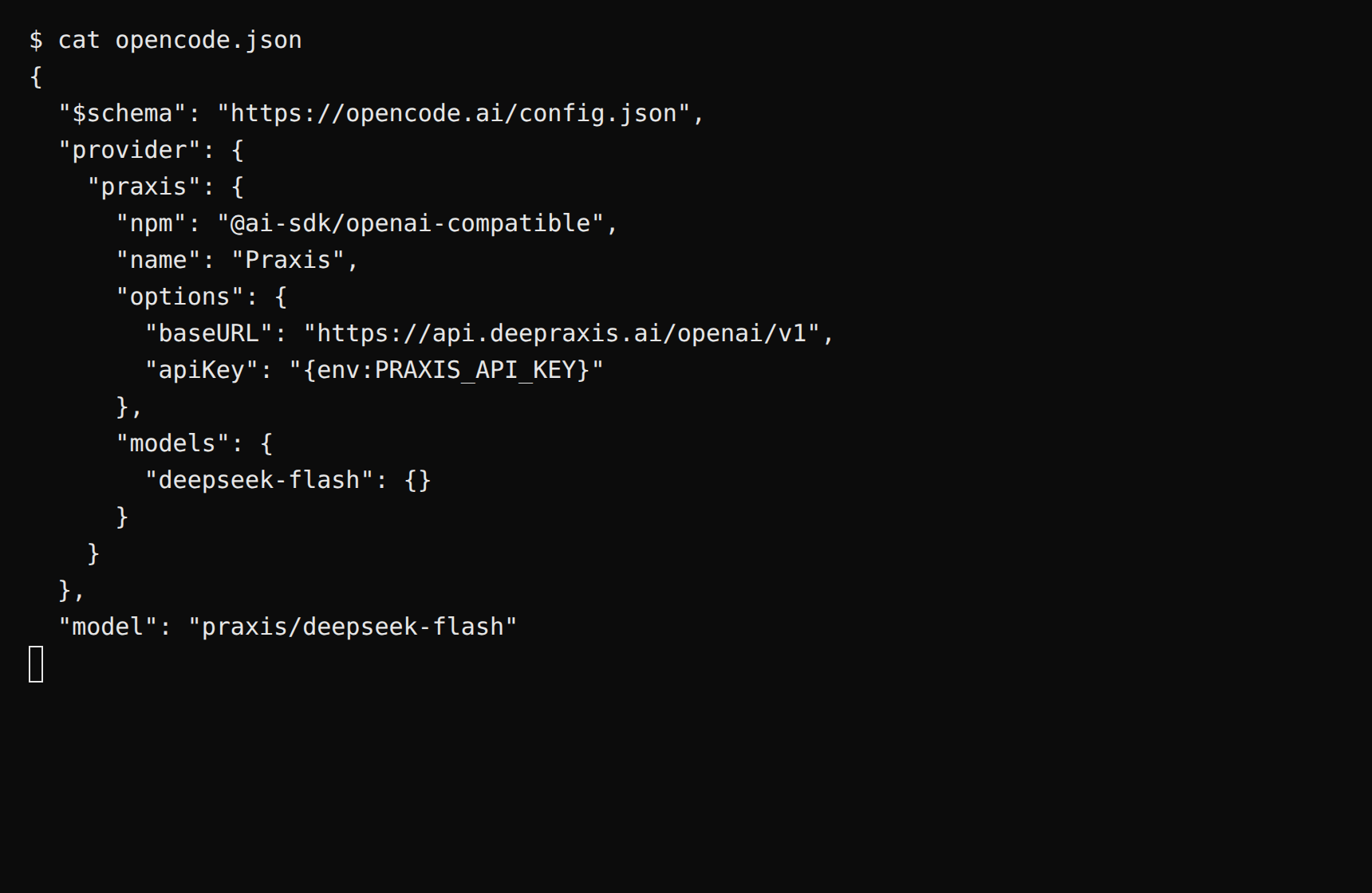
From your code project directory, create opencode.json:
{
  "$schema": "https://opencode.ai/config.json",
  "provider": {
    "praxis": {
      "npm": "@ai-sdk/openai-compatible",
      "name": "Praxis",
      "options": {
        "baseURL": "https://api.deepraxis.com/openai/v1",
        "apiKey": "{env:PRAXIS_API_KEY}"
      },
      "models": {
        "deepseek-flash": {}
      }
    }
  },
  "model": "praxis/deepseek-flash"
}
Three notes:
npmtells OpenCode to drive the conversation with@ai-sdk/openai-compatible—OpenCode's provider system is built on the AI SDK, and the driver installs automatically on first run.apiKeyreferences the environment variable via{env:PRAXIS_API_KEY}—the key never lands in a file.- Models are referenced as
provider/model-id;deepseek-flashis the platform's sample model.
Expected: saving the file takes effect immediately.
Verify
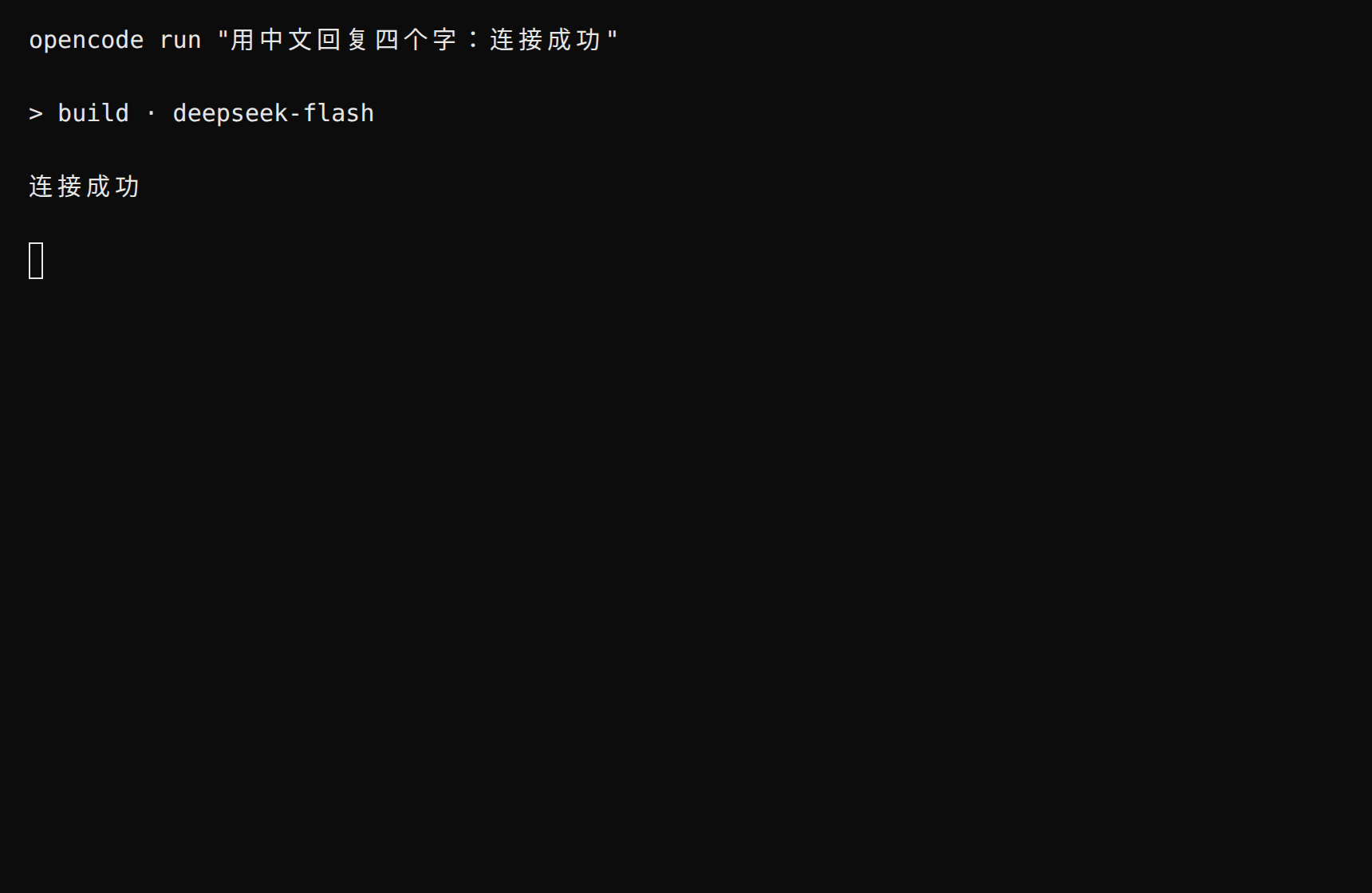
From the project directory, run:
opencode run "Reply with exactly: connected"Expected: the last line is the model reply connected (preceded by a session-title line like > build · deepseek-flash)—a reply means you're connected. Drop run and execute opencode for the interactive terminal UI.
You can also verify from the command line. The commands below are written for macOS / Linux / WSL (bash). On Windows PowerShell: a successful opencode run above already means you're connected—feel free to skip; for the CLI route, run $env:PRAXIS_API_KEY="your-key" first, use curl.exe (PowerShell's curl is an alias with different syntax), and join the command into a single line (dropping the trailing \).
export PRAXIS_API_KEY=sk-praxis-your-keycurl https://api.deepraxis.com/openai/v1/chat/completions \
-H "Authorization: Bearer $PRAXIS_API_KEY" \
-H "Content-Type: application/json" \
-d '{"model": "deepseek-flash", "messages": [{"role": "user", "content": "Hello"}]}' \
-w '\nHTTP %{http_code}\n'Expected: HTTP 200 means you're connected, with the reply in choices[0].message.content (reasoning / reasoning_details fields may also appear—reasoning models include their chain of thought).
Finally, check Console → Usage & Billing: the call you just made is already on the books—every call is billed and traceable. The usage page aggregates by resource by default; open "View usage details" or click a resource row for per-call records.
FAQ
| Symptom | Cause | Fix |
|---|---|---|
| 401 / Missing authentication | Key not exported, or apiKey doesn't use the {env:…} reference | Check echo $env:PRAXIS_API_KEY first; make sure apiKey reads {env:PRAXIS_API_KEY} |
EACCES (mkdir ~/.local/share or ~/.config) | OpenCode needs a writable user-data directory and this environment has none | Point XDG_DATA_HOME/XDG_CONFIG_HOME/XDG_STATE_HOME/XDG_CACHE_HOME at writable directories and retry |
| Platform-package install failure | npm didn't fetch the right platform binary | Install the package the error suggests (Linux x64: opencode-linux-x64) |
| 404 / path not found | Wrong baseURL | It must be https://api.deepraxis.com/openai/v1 (ending with /openai/v1) |
| "Model not found" | Model ID doesn't match the catalog | Copy the exact ID from Console → Models → Model Catalog |
Advanced
- How much did that session cost? Console → Usage & Billing—pay per call, no idle fees
- Switch models: add another catalog ID to
models(e.g.claude-opus-5) and setmodeltopraxis/<new-id> - Use it in a project: interactive mode reads files, edits code, and runs commands, asking for your confirmation before sensitive actions
Related recipes
- Claude Code · Codex (siblings)
- Prefer SDKs? See the Vercel AI SDK—OpenCode's provider system shares its roots