Cherry Studio
Connect Praxis to Cherry Studio: one key, every model.
Connect Praxis to Cherry Studio and chat with every model through a single key—no code required.
Every step lists its expected result: follow along yourself, or hand this page to an AI assistant that can operate your computer and let it do the setup and verification for you.
What you'll accomplish
- Use Praxis models directly inside Cherry Studio
- Done when: you send "Hello" to
deepseek-flashand get a reply - Time needed: 5 minutes (excluding download and install)
- Protocols: OpenAI-compatible (this page) / Anthropic-compatible (see Advanced)
Prerequisites
Confirm each item before you start:
- A Praxis API key (starting with
sk-praxis-). If you don't have one, create it at Console → API Keys: click "Create Key"—the name is required, the validity defaults to 90 days (or pick permanent)—then copy it right away. You can also re-copy the full key any time from the "Copy" action on its row in the key list. New accounts ship with $1 of free credit. See Quickstart for the full flow. - Cherry Studio installed. Download from the official site (auto-matches your OS), or pick from GitHub Releases: Windows
-setup.exe(installer) or-portable.exe(portable); macOS.dmg(x64 for Intel, arm64 for Apple silicon); Linux.AppImage(chmod +xafter download, then run). - First launch: pick your language (English is the default), and on the welcome page click "Set up later" to skip signing in.
- This page follows the v2.1.4 UI; menu locations may shift slightly between versions.
Configure
Step 1: open model service settings
Click the gear icon "Settings" in the lower-left corner of the main window, then "Model Services" in the left menu.
Expected: the provider list appears on the right (OpenAI, SiliconFlow, Z.ai Open Platform…).
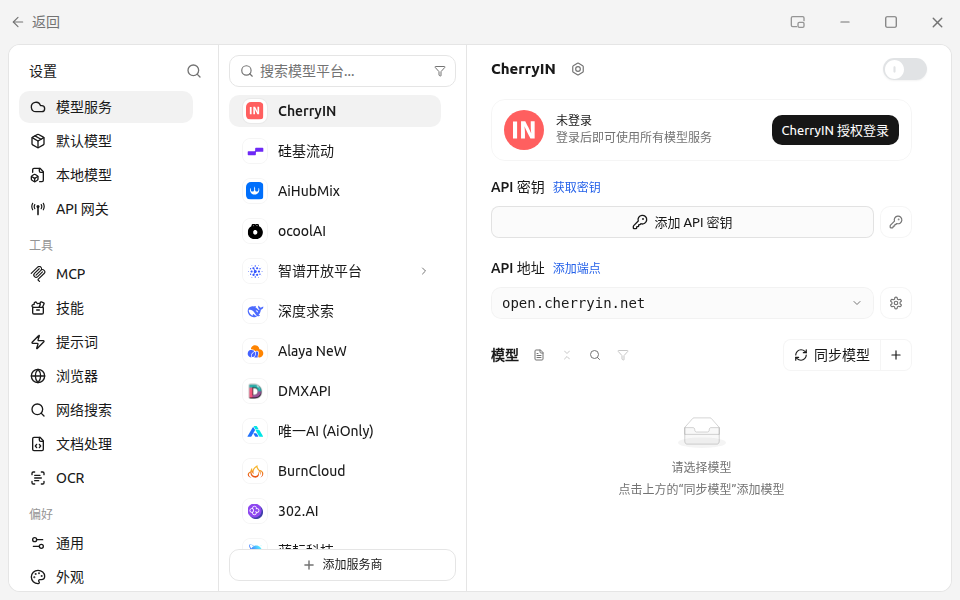
Step 2: add the provider—name, key, and base URL in one dialog
Click "Add Provider" at the bottom of the provider list and fill three things in the "Add Custom Provider" dialog:
| Field | Value |
|---|---|
| Provider name (required) | Praxis (display name, any label works) |
| API key | your key starting with sk-praxis- |
| Endpoint → OpenAI base URL | https://api.deepraxis.com/openai/v1 |
The base URL must end with /v1—the dialog shows a live "Request path" preview; you should see …/openai/v1/chat/completions. Click "Add" when done.
Expected: a Praxis entry appears at the end of the provider list, with the key shown masked on its card.
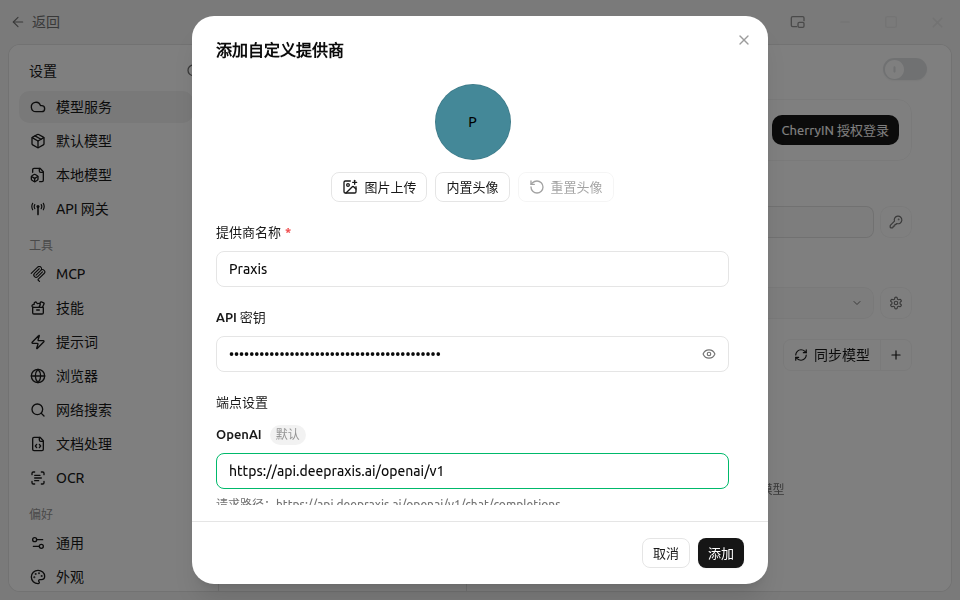
Step 3: add a model
After the provider is added, Cherry Studio automatically fetches the Praxis model catalog and opens a "Select Models" dialog. Check deepseek-flash—the platform's sample model: cheap, fast, good at both Chinese and English—then click "Add Selected Models"; the app verifies and enables it automatically.
Expected: the model shows up in Praxis's model list with its enable switch on.
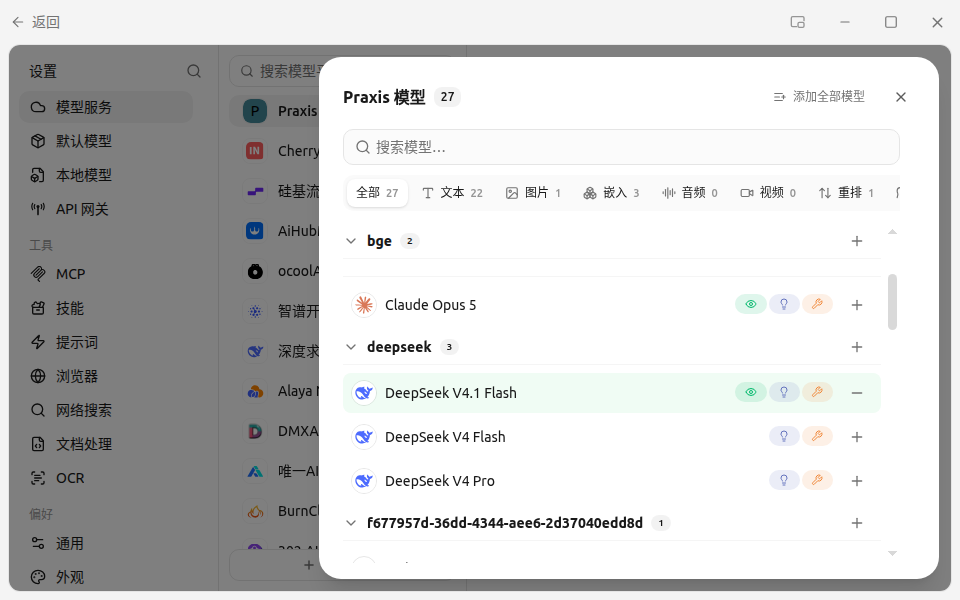
If the fetch fails or the list is empty, click "Manually Add Model" on the Praxis card and enter the model ID deepseek-flash; leave the rest empty.
Verify
Back on the chat page, open the model picker at the top right, switch to deepseek-flash under Praxis, and send "Hello".
Expected: a reply arrives within seconds—a reply means you're connected.
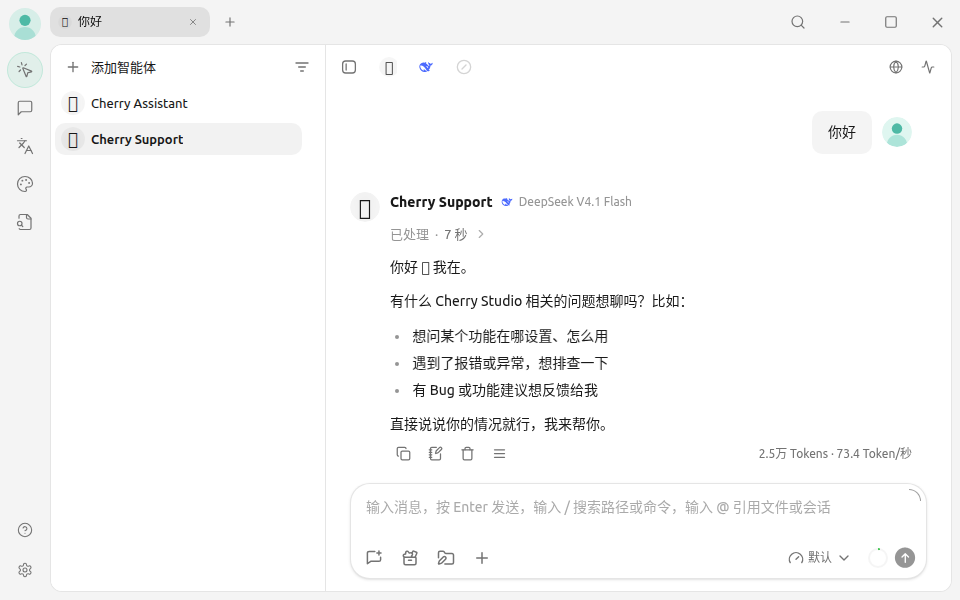
You can also verify from the command line. Set the variable first (copying the curl verbatim without it yields a 401):
export PRAXIS_API_KEY=sk-praxis-your-keyThe commands below are written for macOS / Linux / WSL (bash). On Windows PowerShell: a reply in the app already means you're connected—feel free to skip; for the CLI route, run $env:PRAXIS_API_KEY="your-key" first and join the curl into a single line (dropping the trailing \).
curl https://api.deepraxis.com/openai/v1/chat/completions \
  -H "Authorization: Bearer $PRAXIS_API_KEY" \
  -H "Content-Type: application/json" \
  -d '{"model": "deepseek-flash", "messages": [{"role": "user", "content": "Hello"}]}'
Expected: HTTP 200, with a reply in choices[0].message.content (a reasoning field may also appear—reasoning models include their chain of thought). 401 means a key problem; "model not found" means a typo in the model ID—see the FAQ below.
Finally, check Console → Usage & Billing: the call you just made is already on the books—every call is billed and traceable.
FAQ
| Symptom | Cause | Fix |
|---|---|---|
| Invalid token / 401 | Key copied incompletely, or revoked | Copy it again in full (mind the sk-praxis- prefix); if it still fails, create a new one in the console |
| First message fails with "requires the local API Gateway bridge, which is disabled" | The local gateway is off by default | Click "Enable" in the prompt, then resend |
| Model list fetch fails or is empty | Wrong API path | The address must be https://api.deepraxis.com/openai/v1 (ending with /v1; check the request-path preview). Run the curl above to tell network from config; if fetching still fails, use "Manually Add Model" |
| "Model not found" | Model ID doesn't match the catalog | Copy the exact ID from Console → Models |
| Request timeout / no response | Local network | Retry from another network or via a proxy; if curl also times out, it's the network, not the config |
Advanced
- How much did that chat cost? Console → Usage & Billing—pay per call, no idle fees
- Switch models: check more models from the catalog any time and switch in the chat page.
deepseek-flashis the rolling entry that always points at the latest Flash generation; usedeepseek-v4-flashwhen you want a pinned snapshot - Use the Anthropic protocol: fill the Anthropic base URL instead—
https://api.deepraxis.com/anthropic(no/v1; the client appends/v1/messages, see the dialog's preview). Everything else is identical
Related recipes
- Chatbox · LobeHub · Open WebUI
- Migrating from another service? See the migration guide