Open WebUI
Connect Praxis to Open WebUI: a self-hosted chat UI, one Docker command away.
Connect Praxis to Open WebUI—the most popular self-hosted AI chat interface. One Docker command to start, configure the connection in your browser, and chat with every Praxis model.
Every step lists its expected result: follow along yourself, or hand this page to an AI assistant that can operate your computer and let it do the install, setup, and verification for you.
What you'll accomplish
- Run a self-hosted Open WebUI instance with Docker, connected to Praxis models
- Done when: you send "Hello" in the chat and get a reply
- Time needed: 5 minutes (excluding the Docker image download)
- Protocol: OpenAI-compatible (
/openai/v1)
Prerequisites
Confirm each item before you start:
- Docker installed and running (check
docker --version). Install from Docker if needed. - A Praxis API key (starting with
sk-praxis-). If you don't have one, create it at Console → API Keys: click "Create Key"—the name is required, validity offers 30/60/90 days or permanent, defaulting to 90 days; the success dialog shows the full key with a "Copy Key" button. New accounts ship with $1 of free credit. See Quickstart for the full flow.
Install & Start
Step 1: start the Open WebUI container
docker run -d --name open-webui --restart always -p 3080:8080 ghcr.io/open-webui/open-webui:mainExpected: a container ID prints with no errors. The first run pulls the image (~2GB) and takes a few minutes.
Step 2: open the browser
Visit http://localhost:3080.
Expected: the Open WebUI welcome page with a "Get started" button.
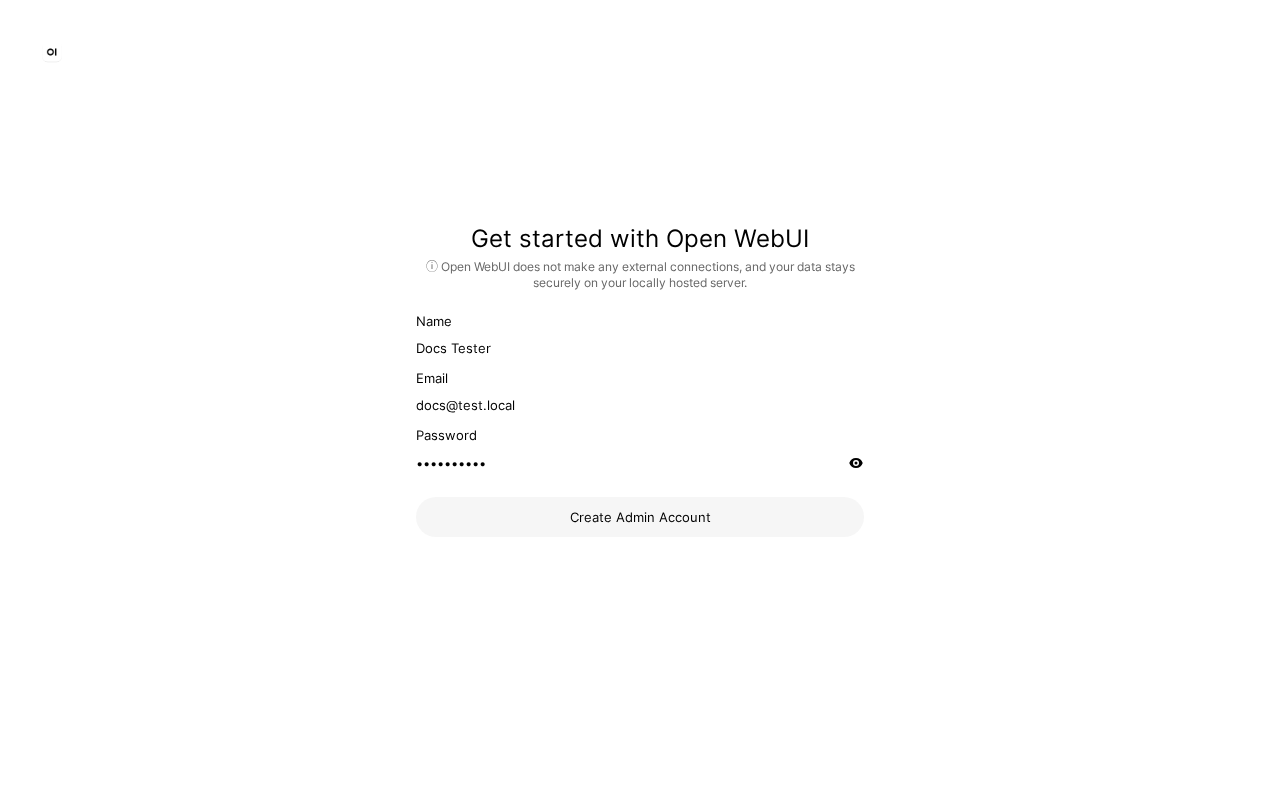
Step 3: create an admin account
Click "Get started", fill in Name, Email, and Password (this is a local admin account, unrelated to Praxis), then click "Create Admin Account".
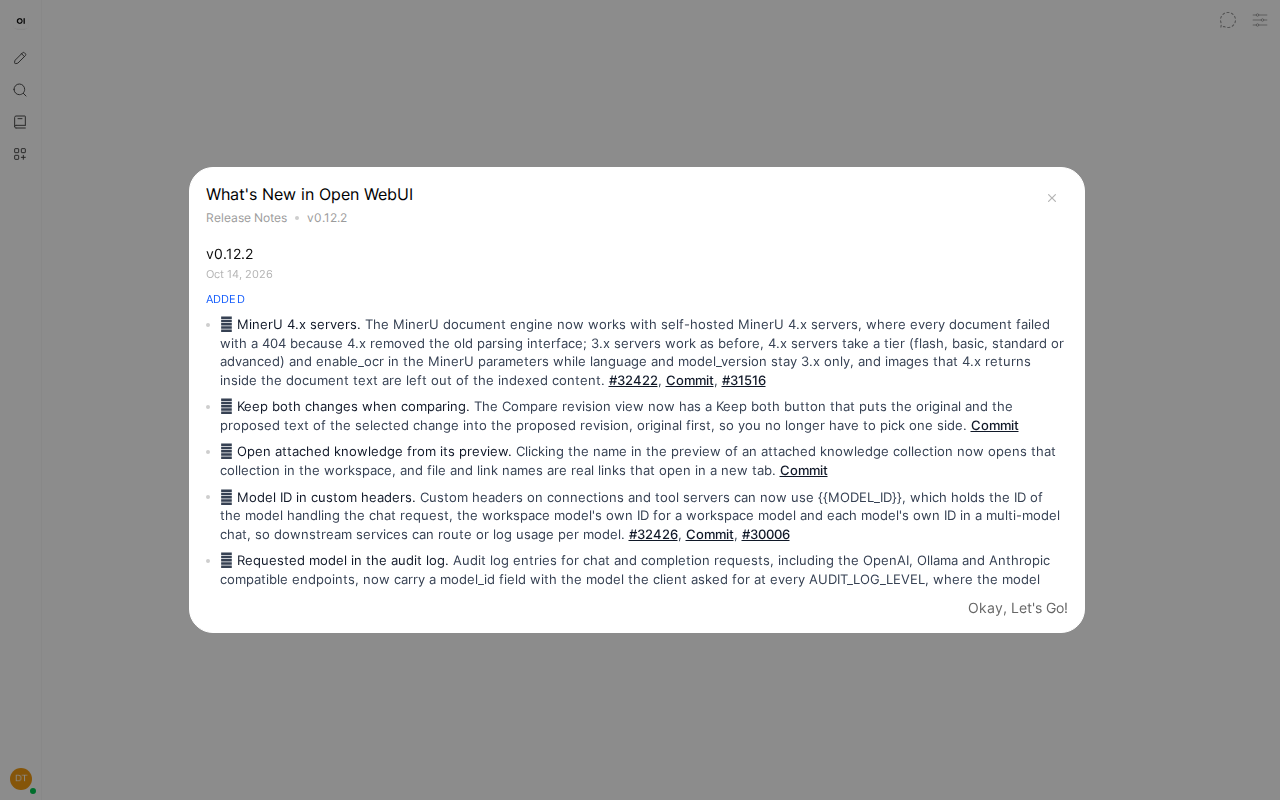
Expected: the Open WebUI main interface loads—conversation list on the left, chat box in the center.
Configure
Step 4: open connection settings
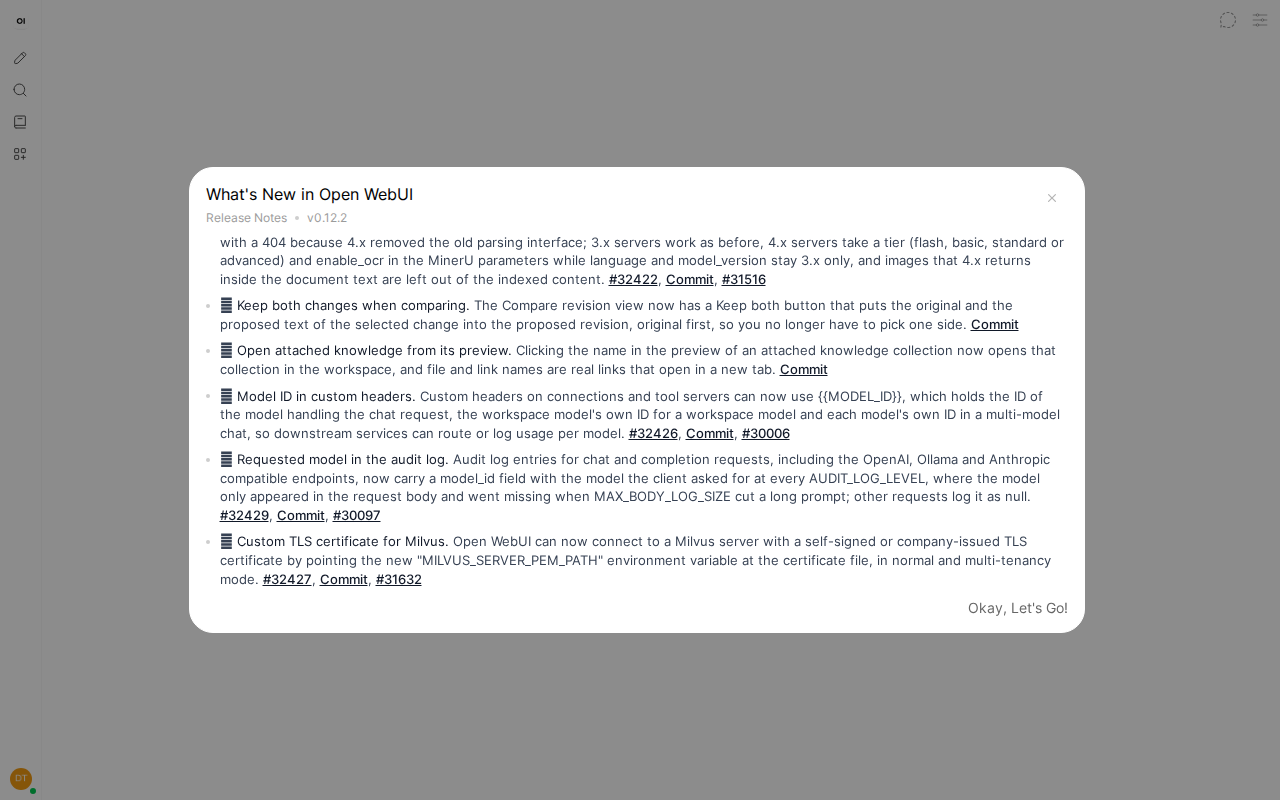
Click your username in the bottom-right, then select "Admin Panel" → "Settings" → "Connections".
Expected: the OpenAI API connection configuration area appears.
Step 5: enter the Praxis connection
In the OpenAI API section:
| Field | Value |
|---|---|
| URL | https://api.deepraxis.com/openai/v1 |
| Key | your key starting with sk-praxis- |
Click "Save".
Expected: after saving, return to the chat page—Praxis models now appear in the model picker.
You can also preset the connection via environment variables at container start (no UI needed):
docker run -d --name open-webui --restart always -p 3080:8080 \
  -e OPENAI_API_BASE_URL=https://api.deepraxis.com/openai/v1 \
  -e OPENAI_API_KEY=sk-praxis-your-key \
  ghcr.io/open-webui/open-webui:main
Verify
Back on the chat page, pick a model (e.g. deepseek-flash) from the model selector at the top and send "Hello" in the input box.
Expected: a reply arrives within seconds—a reply means you're connected.
Finally, check Console → Usage & Billing: the call you just made is already on the books—every call is billed and traceable.
FAQ
| Symptom | Cause | Fix |
|---|---|---|
localhost:3080 won't open | Container still starting (first run takes 1-2 minutes) | Wait and refresh; check docker logs open-webui for progress |
| Model list is empty | The connection URL is missing the /openai/v1 suffix | It must be https://api.deepraxis.com/openai/v1 |
| 401 / invalid token | API key copied incompletely | Copy it again in full (mind the sk-praxis- prefix) |
| "Model not found" | Model ID doesn't match the catalog | Copy the exact ID from Console → Models → Model Catalog |
| Container keeps restarting | Port conflict or insufficient memory | Check that port 3080 is free; ensure Docker has at least 2GB |
Advanced
- What did that chat cost? Console → Usage & Billing—pay per call, no idle fees
- Switch models: change models anytime in Open WebUI's model picker;
deepseek-flashalways points at the latest Flash generation - Multi-user: Open WebUI supports user registration—manage access in Admin Panel → Users
- Customize the interface: Admin Panel → Settings → Interface for themes and languages (Chinese supported)
- Persistent data: add
-v open-webui:/app/backend/datato persist chat history across container rebuilds
Related recipes
- Cherry Studio (desktop client, no Docker needed)
- Dify (low-code platform, also Docker)
- Rather not install anything? See Praxis App: open a URL and start chatting